If AI Can't Read Your Context, It's Useless. Here's How to Fix That.
April 6, 2026
The real problem
Here's where people get stuck:
- Open ChatGPT
- Try to explain the situation from scratch
- Get surface-level advice (the AI is missing 90% of the story)
- Give up, go back to doing it manually
The AI isn't broken. It just can't see where you work.
Your real work is in:
- Word docs with tracked changes and team comments
- Slack threads where decisions got made
- Your CRM with client history and past conversations
- Templates you've refined over years
- Email chains with context buried 15 replies deep
- Spreadsheets with your calculations and notes
AI lives in a chat window. These worlds don't talk.
That's the gap.
According to Gloria Mark's research at UC Irvine, knowledge workers switch tasks every 3 minutes and 5 seconds, and it takes 23 minutes to refocus. Every tool switch is another interruption.
The fix: let AI read your tools
Instead of copying everything into ChatGPT, flip it around.
Give AI permission to read your actual apps.
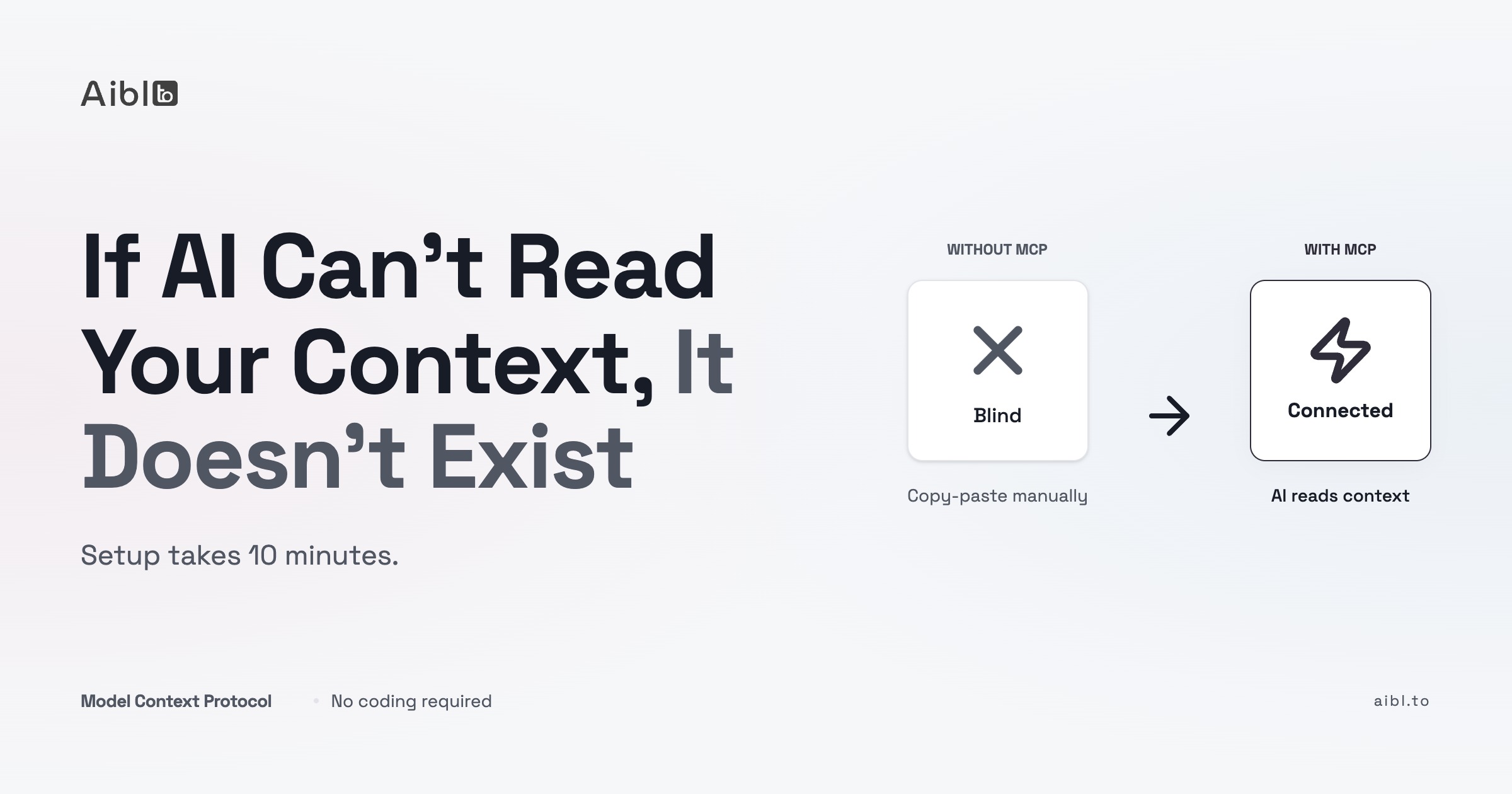
This exists right now. It's called Model Context Protocol (MCP). Connects AI to your tools.
| Without MCP | With MCP |
|---|---|
| Copy-paste context into ChatGPT | AI reads tools directly |
| Context limited to chat window | AI accesses live data |
| Manual updates when data changes | Auto-synced |
| 15+ min per task | 2-3 min per task |
| Generic responses | Context-aware responses |
Broken workflow:
- Client asks a question in Slack
- You dig through the CRM for their account
- Open the proposal doc to check what you promised
- Paste it all into ChatGPT
- Ask for a response
- Edit it because the AI missed half the context anyway
With context:
- "Claude, draft a response to Maria's question in #client-acme"
- Claude reads the Slack thread
- Checks the CRM
- Opens the proposal (including your comments)
- Drafts something that actually fits
- You review, tweak, send
AI does the legwork. You keep the judgment.
The plan: 4 steps to context-aware AI
You don't need to be technical. Here's the framework.
Step 1: Map where your context lives
Write down where the information you need actually exists:
- Client context: CRM (HubSpot, Notion, Pipedrive), email history
- Team decisions: Slack, Teams, project management tools
- Work in progress: Word docs with comments, Google Docs, shared drives
- Templates & standards: Your proposal templates, report formats, checklists
- Knowledge base: Your Notion wiki, internal docs, SOPs
You're not changing your tools. You're making them visible to AI.
Step 2: Choose what the AI can access
You control permissions. Start narrow:
- Read-only first: Let AI read Slack, CRM, and docs but not write or delete
- Specific channels: Give access to #general, not your #leadership-confidential channel
- Non-sensitive data: Start with internal processes, not client financials
Expand access later. Start with what makes you comfortable.
Step 3: Connect the AI to those tools
This is where MCP comes in. Two approaches:
Option A: Use pre-built connectors (easiest)
- Claude Desktop supports MCP
- Install connectors for Slack, Notion, Google Drive, etc.
- Follow setup guides (10-15 minutes per tool)
- No coding required
Option B: Build custom connectors (for unique workflows)
- Hire someone or work with us to build a connector for your specific CRM or industry software
- One-time setup, works forever
Step 4: Test and expand
Start with one workflow:
"When a client asks a question in Slack, draft a response using:
- The CRM record for context on their account
- The proposal doc to check what we agreed to
- Our internal wiki for our standard process"
Once that works, expand:
- Generate reports from CRM data + templates
- Draft proposals using past proposals as examples
- Summarize meeting notes from Teams into action items
Real examples: context integration for consultants
Proposal writing (Financial Advisor)
Without context:
3 hours writing a financial plan proposal. Copy client info from CRM, paste parts of last proposal, adjust numbers, rewrite personalization.
With context:
Prompt: "Draft a financial planning proposal for Jan de Vries using:
- Client profile from HubSpot (id: 12345)
- Last year's proposal to Maria Jansen as a template
- Our standard fee structure from the wiki"
Claude pulls all three sources, generates first draft in 90 seconds. You review and adjust personal touches. Time saved: 2 hours.
Client follow-up (Legal Consultant)
Without context:
Client emails asking about invoice terms. You search email for the original contract, scan for payment terms, draft a response.
With context:
Prompt: "Draft a response to this email using the payment terms from Contract_ABC_2025.docx."
Claude reads the contract (including tracked changes and comments), pulls the exact clause, drafts a professional response. Time saved: 20 minutes.
Report generation (Energy Auditor)
Without context:
Run site audit, collect measurements, manually fill report template with Excel data, write the same compliance sections every time.
With context:
Prompt: "Generate an energy audit report using:
- Site data from Audit_2025_04_Site_B.xlsx
- Photos from Google Drive folder Site_B_Photos
- Standard compliance text from AuditTemplate_v3.docx"
Claude builds the report. You verify measurements and add expert commentary. Time saved: 4 hours.
Team coordination (Agency Owner)
Without context:
Designer asks in Slack about a client's brand guidelines. You search Notion, find the doc, paste the relevant section.
With context:
Designer asks in Slack. You prompt: "Answer Tim's question in #project-acme using the brand guidelines from Notion."
Claude reads the Slack message, searches Notion, drafts reply with exact guideline. Time saved: 10 minutes.
What this actually feels like
Once AI can read your context:
You stop being a search engine for your own information.
Instead of:
- "Let me find that doc"
- "Give me a sec to check the CRM"
- "I'll look through Slack and get back to you"
You say:
- "Claude, pull the details from the CRM and draft a response"
- "Summarize the decision from last week's Slack thread"
- "Generate the report using the template and the client data"
You stay in the decision-making layer. AI handles retrieval and drafting.
Your speed goes up. Your quality stays high.
You're not rushing through grunt work. You're reviewing AI-generated drafts that already have the right context.
Common mistakes
Mistake 1: Giving too much access too fast
Start narrow. One tool, one workflow, read-only permissions. Expand once you trust it.
Mistake 2: Not labeling your sources
If your templates are named Final_FINAL_v3.docx, the AI won't know which one to use. Clean up naming conventions first.
Mistake 3: Treating AI output as final
The AI gives you a draft. You add judgment, tone, and human touches. Don't skip the review step.
Mistake 4: Skipping the "why"
When you prompt, tell it why you need the information. "Draft a response to calm an upset client" gets better output than "Draft a response."
For software teams: technical implementation
If you're a developer or technical team lead, here's how to implement context integration using MCP.
Setup: GitHub + Slack + Figma
Tools:
- Claude Desktop with MCP support
- GitHub MCP server (repos, PRs, issues)
- Slack MCP server (channels, threads, DMs)
- Figma MCP server (designs, comments, specs)
Configuration:
Install MCP servers:
npm install -g @modelcontextprotocol/server-github
npm install -g @modelcontextprotocol/server-slack
npm install -g @anthropic-ai/mcp-server-figma
Configure Claude Desktop (edit ~/Library/Application Support/Claude/claude_desktop_config.json):
{
  "mcpServers": {
    "github": {
      "command": "npx",
      "args": ["-y", "@modelcontextprotocol/server-github"],
      "env": {
        "GITHUB_TOKEN": "your_token_here"
      }
    },
    "slack": {
      "command": "npx",
      "args": ["-y", "@modelcontextprotocol/server-slack"],
      "env": {
        "SLACK_BOT_TOKEN": "xoxb-your-token",
        "SLACK_TEAM_ID": "T1234567"
      }
    },
    "figma": {
      "command": "npx",
      "args": ["-y", "@anthropic-ai/mcp-server-figma"],
      "env": {
        "FIGMA_PERSONAL_ACCESS_TOKEN": "your_figma_token"
      }
    }
  }
}
Restart Claude Desktop. MCP servers auto-start when Claude launches.
Usage patterns
PR review with full context:
Prompt: "Review PR #234 in repo/project. Check:
- The Figma design spec linked in the description
- Related Slack discussion in #engineering
- Similar PRs from the last month

Focus on: design fidelity, edge cases, test coverage."
Claude fetches the PR diff, loads Figma design, searches Slack, finds related PRs, and generates review comments with context from all sources.
Feature spec from Slack + Figma:
Prompt: "Write a technical spec for the feature discussed in #product-ideas (thread from April 3).
Use the Figma mockup: figma.com/file/abc123
Reference our standard spec template from GitHub: docs/templates/feature-spec.md"
Claude pulls all three sources and generates a complete spec.
Incident response:
Prompt: "Summarize the production incident from:
- Slack #incidents (last 2 hours)
- GitHub issues with label 'incident'
- Related PRs merged in the last 48 hours

Format: timeline, root cause hypothesis, action items."
Claude correlates events across tools and builds an incident summary.
What comes next
Once AI can read your context:
You stop doing retrieval work. You start doing judgment work.
The AI becomes an assistant that actually knows what's going on. It doesn't replace your expertise. It handles the grunt work so you can focus on the decisions only you can make.
This isn't the future. It's available right now.
The question is: will you connect your AI to where you actually work, or keep copying and pasting context into a chat window?
Frequently Asked Questions
How do I connect AI to my CRM?
Install the MCP connector for your CRM (HubSpot, Notion, Pipedrive). Configure read permissions. Test by asking Claude to pull a client record. Takes 10-15 minutes with pre-built connectors.
Can ChatGPT read my Slack messages?
Not by default. ChatGPT doesn't support MCP yet. Claude Desktop does. You install the Slack MCP server, set read-only permissions, and Claude can access the channels you specify.
What is Model Context Protocol (MCP)?
MCP is an open standard developed by Anthropic that lets AI agents connect to external tools and data sources. Think of it as giving your AI assistant a badge to read your files instead of you copying everything manually.
Is it safe to give AI access to my business data?
You control permissions. Start with read-only access to non-sensitive channels and data. Most MCP servers support scoped permissions (e.g., read Slack #general but not #leadership-confidential). You decide what the AI can see.
Do I need to know how to code to set this up?
No. Claude Desktop supports MCP out of the box. You install pre-built connectors (10-15 minute setup per tool) and follow configuration guides. No coding required for standard tools like Slack, Notion, Google Drive.
Related articles
Show us how your team works.
Bring a process that wastes time or money. We will help you build an AI workflow around your data, tools and limitations.